

This is a guest post from Maximilian Maier
Backup is a topic which is often forgotten, when using Software as a Service (SaaS). The provider is responsible for their infrastructure and service availability, but the customer is responsible for their data. Salesforce is one of the most important SaaS providers and without going into all possible data loss scenarios, it should be important that Salesforce recommends their customers to regularly create backups.
It is recommended that you keep a regular backup of your data and to do a manual point-in-time backup before you proceed with any major data project within your organization.
https://help.salesforce.com/s/articleView?id=000386692&type=1
This blog post will give a quick introduction for Veeam Backup for Salesforce and it’s setup.
Overview
Veeam Backup for Salesforce is a self-managed solution, which means customers can deploy it where and how their requirements demand. The solution is Linux-based and uses the following components:
- Management Server
- PostgreSQL Server
- File Repository
- Log Repository
For simplicity of this post, I will place Management and Database server on the same system, but for production usage you should check the Helpcenter and sizing guides.
There’s also a calculator available, if you need a quick estimation: VBSF Calculator
Setup
I already prepared a Linux VM based on Rocky Linux for this blog post and won’t go into detail about the setup of the OS.
As recommended, I used XFS as the file system and placed the File and Log repository on separate disks.

The setup itself is very well documented, and if you’re not an expert on Linux, there’s an installation script available in the Helpcenter: Deployment Guide
- sudo localectl set-locale LANG=en_US.UTF-8
- Log out and log in again
- sudo curl https://repository.veeam.com/yum/el/vbsf-install-script.sh –output ./vbsf-install-script.sh
- sudo sh ./vbsf-install-script.sh
The steps above set the locale to UTF-8, downloads the installation script for RHEL (which is the base for Rocky Linux) and starts the installation. Of course you can also setup everything manually, which is also described in the mentioned helpcenter article.
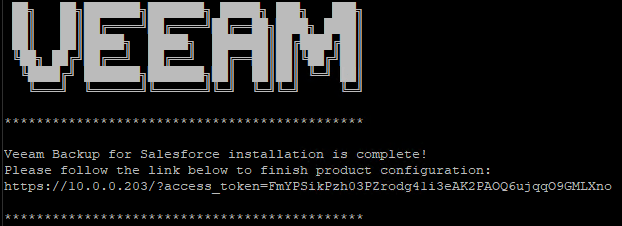
The installation script will download and install all necessary dependencies, included the PostgreSQL server, if you opt to install it on the same machine. When the setup is complete, you’ll see the following screen and receive the URL with an access token to finalize the configuration.
Configuration
After the setup is completed, all further configuration is done via browser. Just open the URL including the access token and you can continue.
Define the password for the local administrator account. After the initial configuration, single sign-on can be configured via Salesforce or Entra ID.

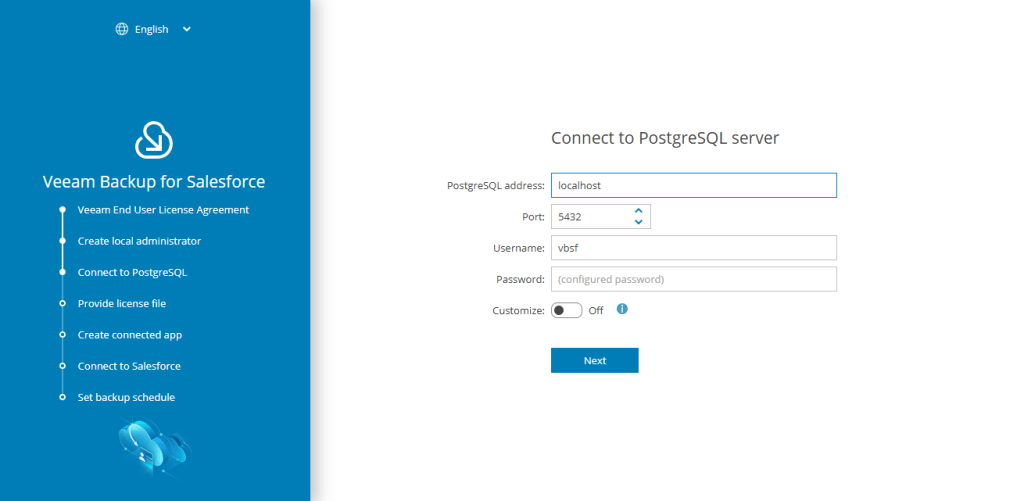
Enter the settings for the PostgreSQL database or leave it as is if you did setup the database via script.
Install your license or use the community edition, which is limited to 50 users.

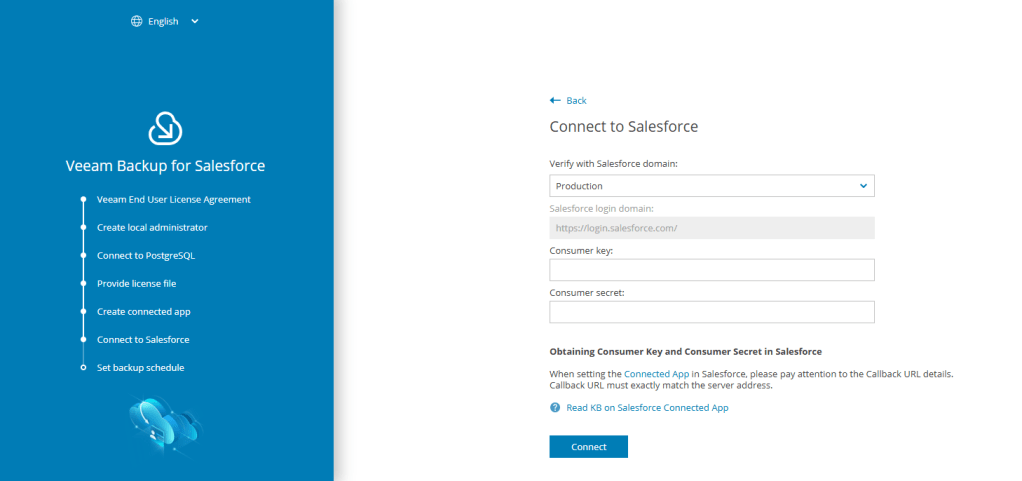
Next you need to create a Salesforce Connected App. Enter the domain name or IP address of your VBSF server and create the App in Salesforce. The steps and settings are described in KB4240.


After creating the App, export the credentials via “Manage Consumer Details” and enter them in Veeam setup. Afterwards you’ll get redirected to Salesforce and need to login and approve the access.
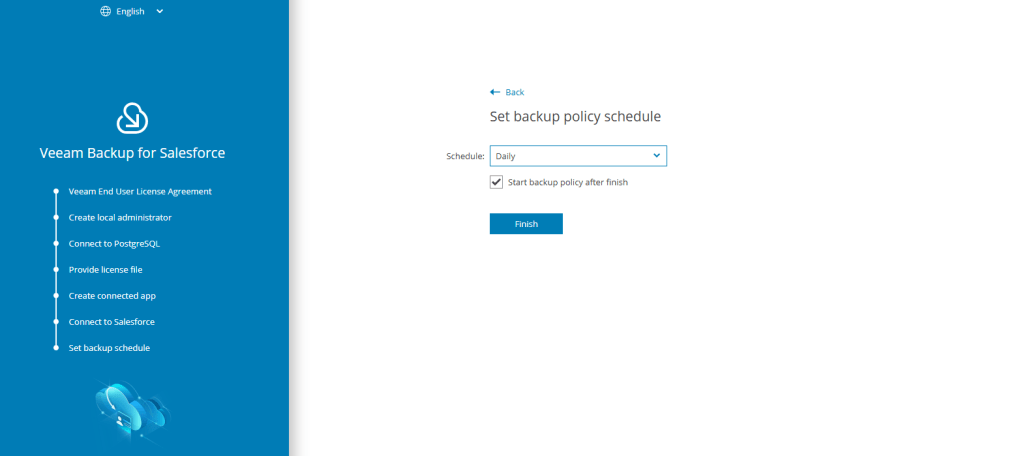
After this you can create the first backup policy, which of course can be changed later.

And that’s it. Veeam Backup for Salesforce is deployed and configured, and you can start to create individual backup policies, configure archiving or browse/restore the backups. In the next blog post I’ll write a bit more about the daily tasks (backup, restore, updating).
 Michael Paul | @micoolpaul
Leave a comment