

This is a guest post from Maximilian Maier
Just a few days ago the RTM build of Veeam Backup & Replication 13.0.1 has been released. And this brings a long awaited option for Proxmox VE: Application-aware processing!
Application-aware processing support — Added Microsoft VSS integration for application- consistent
backups; application-item recovery by Veeam Explorers for Microsoft Active Directory, Microsoft Exchange
and Microsoft SharePoint; transaction log shipping and point-in-time database recoveries with Veeam
Explorers for Microsoft SQL Server, Oracle, and PostgreSQL; support for custom pre-freeze/postthaw
in-guest scripts. This capability requires version 13.0.1 or later.
If you’re not familiar with Veeam, Application-aware processing is an option within a VM backup job which enables application consistent image backups of supported applications. This is possible without installing a dedicated agent inside the virtual machines. In addition it makes application item restores possible from a single VM backup; for example Active Directory.
Besides that, guest file system indexing and malware detection are now also supported and can be configured.
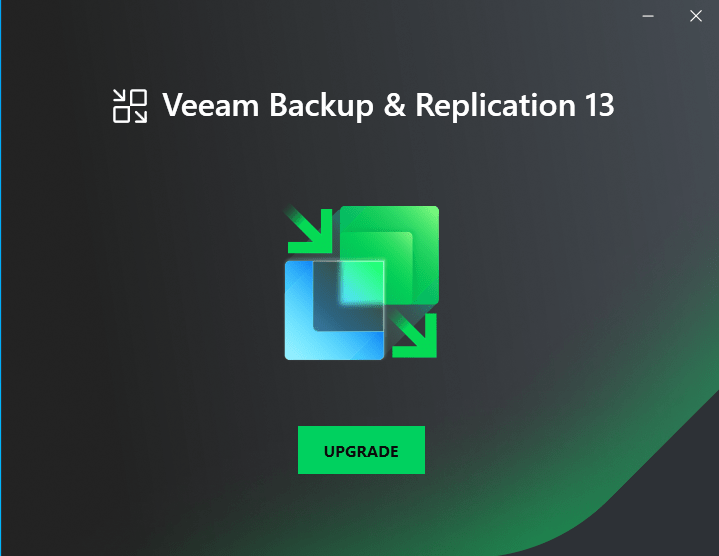
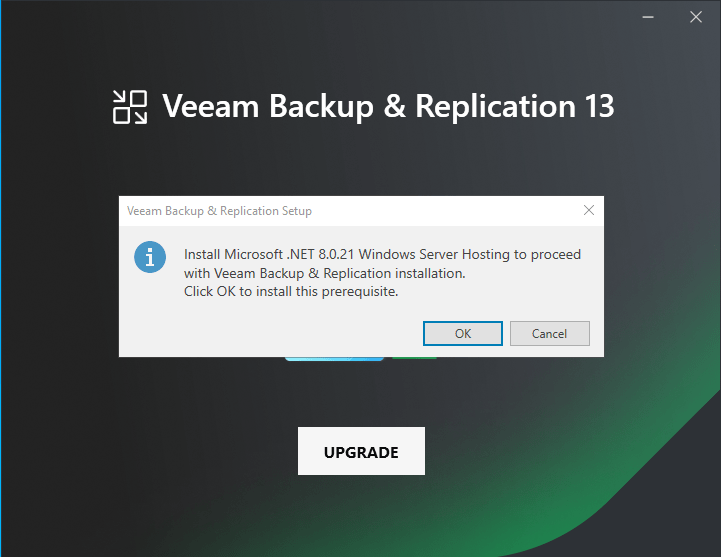
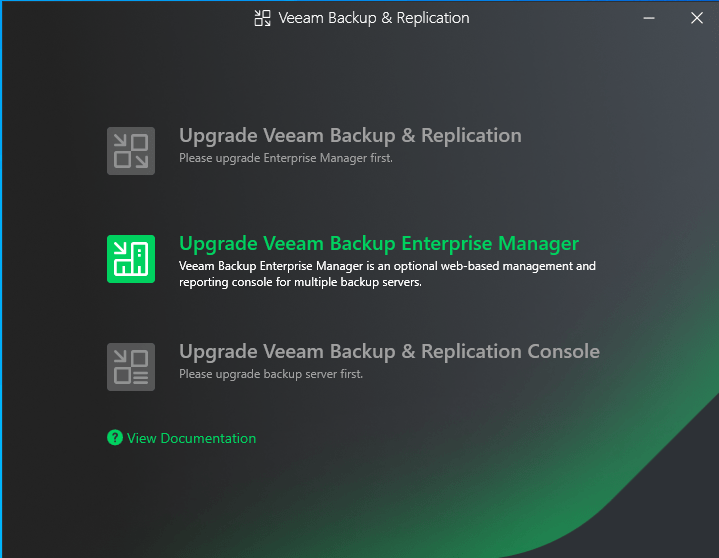
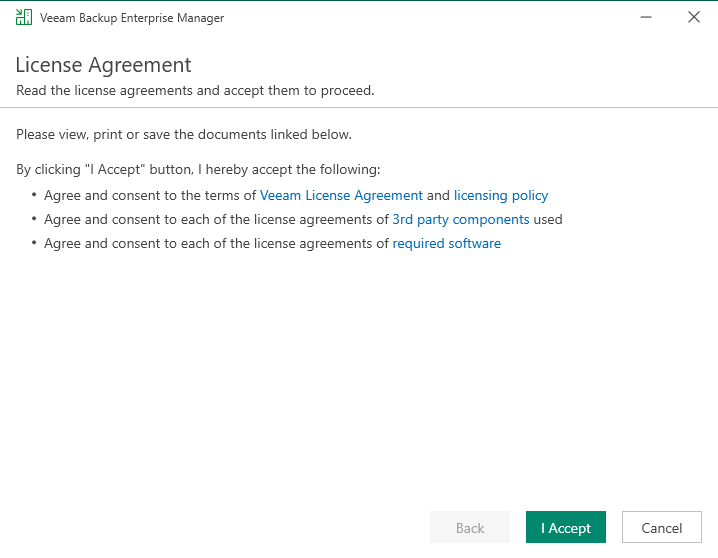
Upgrading to V13.0.1
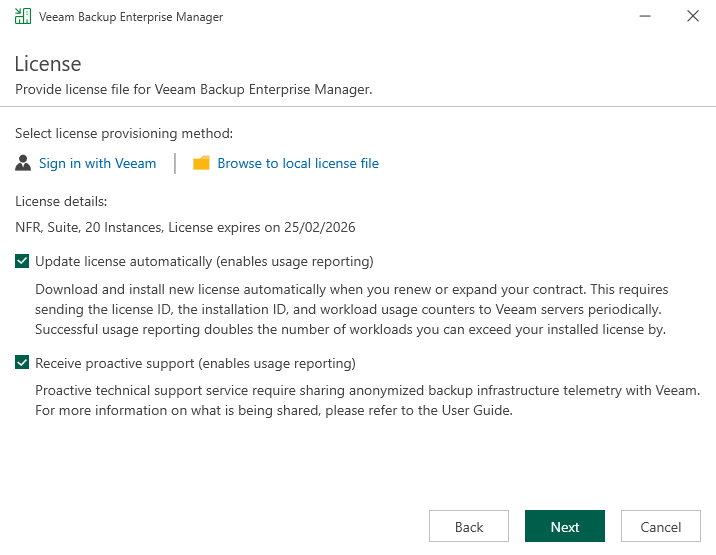
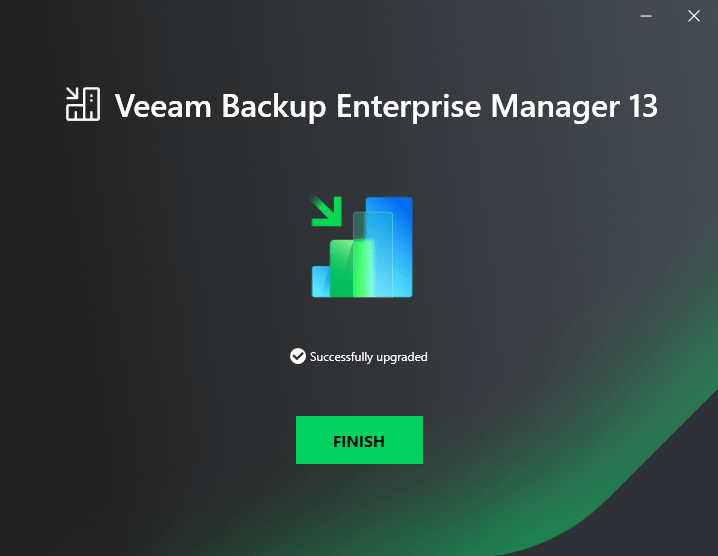
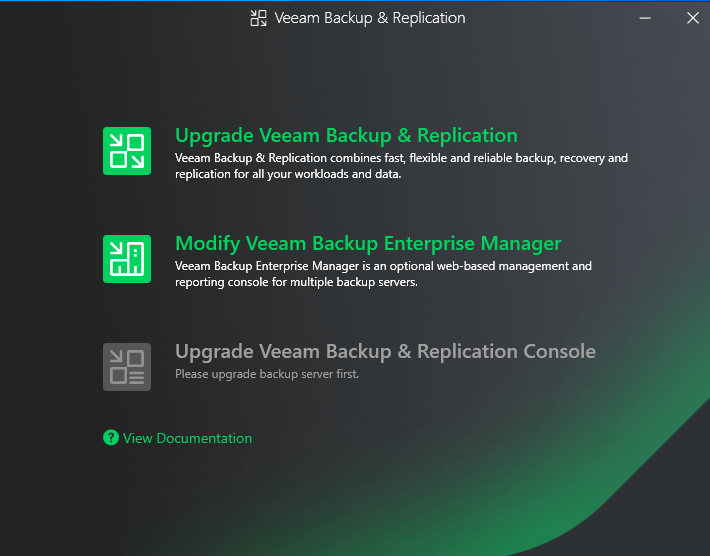
So far Version 13 of Backup & Replication has only been available as the Linux based Software Appliance. The Windows based server was still running on release 12.3 and therefore I started with upgrading to the RTM build.
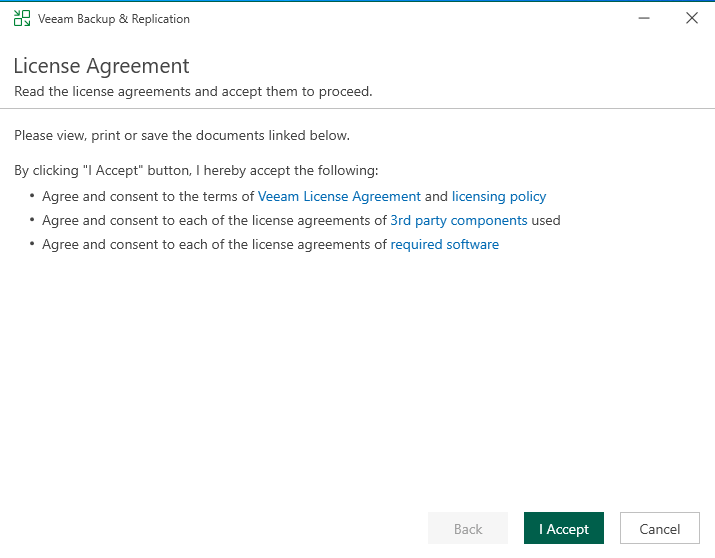
The setup itself is, as always, straight through and there’s not much to say about it. Just make sure to check the Combability Issues during the Configuration Check to make sure there are no bad surprises after upgrading.



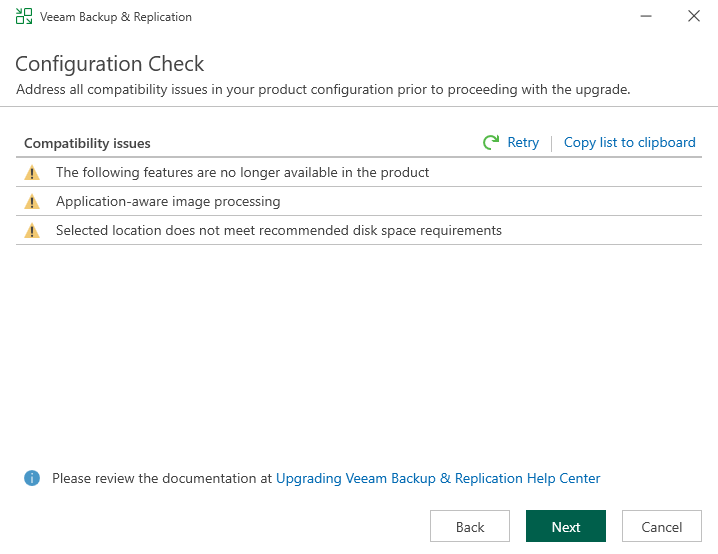
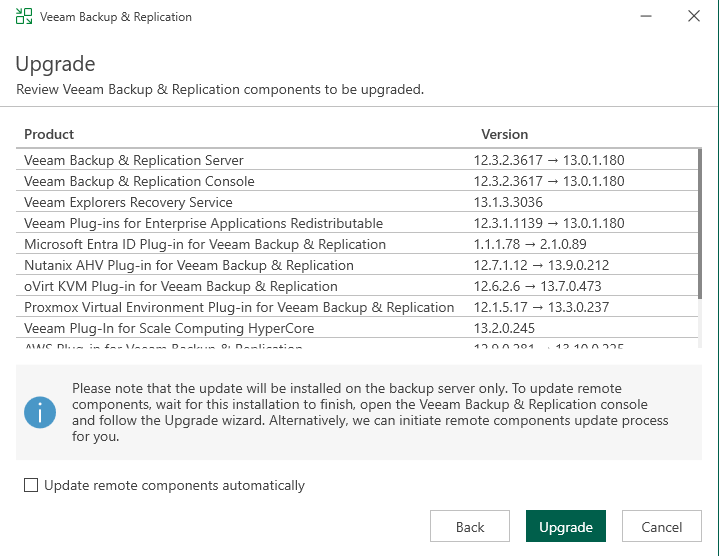
Configuring Guest Processing
After Upgrading to 13.0.1 the Guest Processing tab is available within a Proxmox backup job.
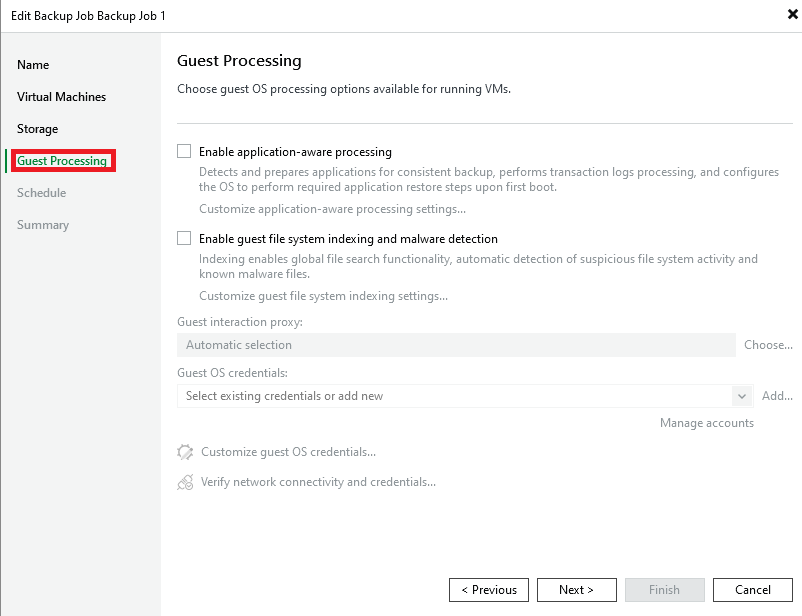
The first checkbox enables application-aware processing. The documentation has not yet been updated for Proxmox but the available options should be more or less equal to VMware: https://helpcenter.veeam.com/docs/backup/vsphere/application_aware_processing.html?ver=120
The second checkbox enables the guest file system indexing, which also includes malware detection.
For both features to work, you will need to add guest OS credentials for your virtual machines, which will be used for the connection. In addition all virtual machines should have the Qemu Guest Agent installed, which is described here: https://pve.proxmox.com/wiki/Qemu-guest-agent
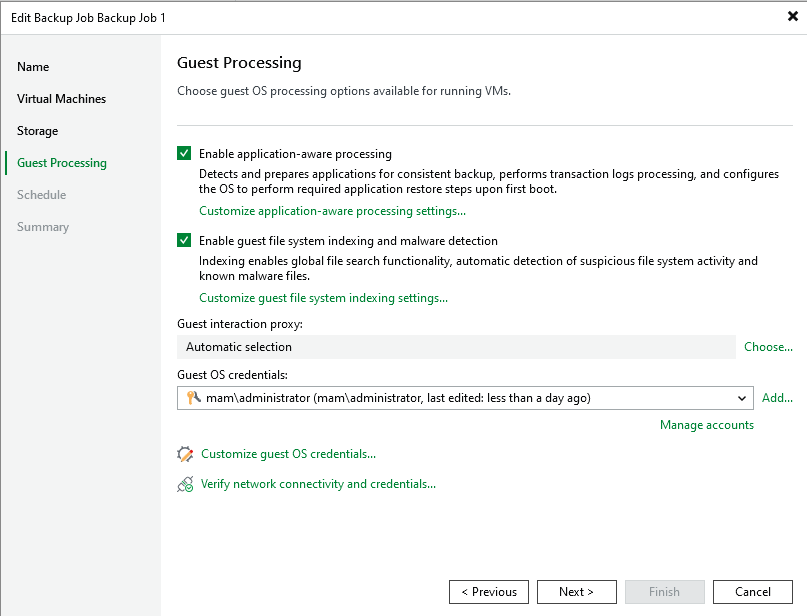
And that’s already everything you need to configure and will be rather familiar to you, in case you’re coming from Hyper-V, Nutanix or VMware.
Restore application items
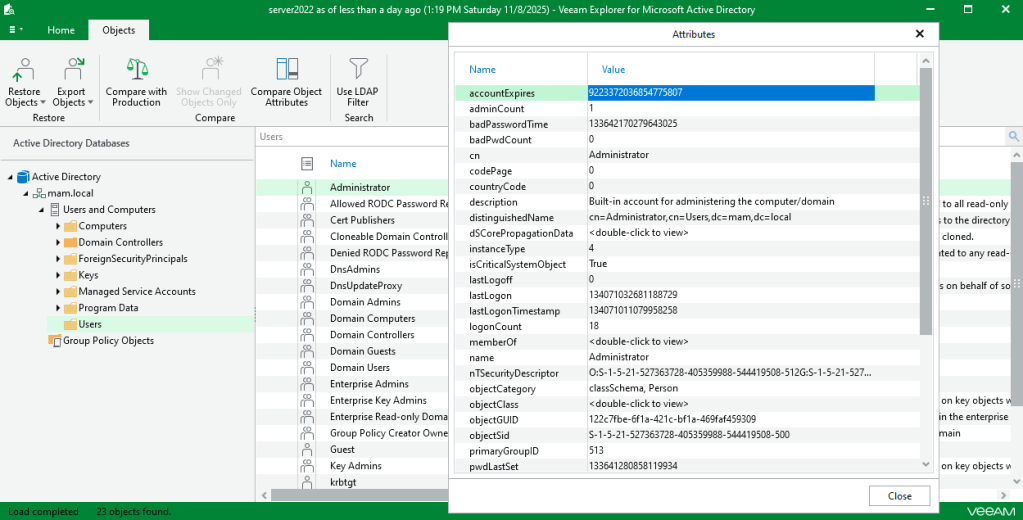
As in my previous tests, I was running a Domain Controller in my Proxmox lab environment. Therefore I configured guest processing for this VM, created another backup and checked the available options. As expected I was now seeing the tab “Restore application items”
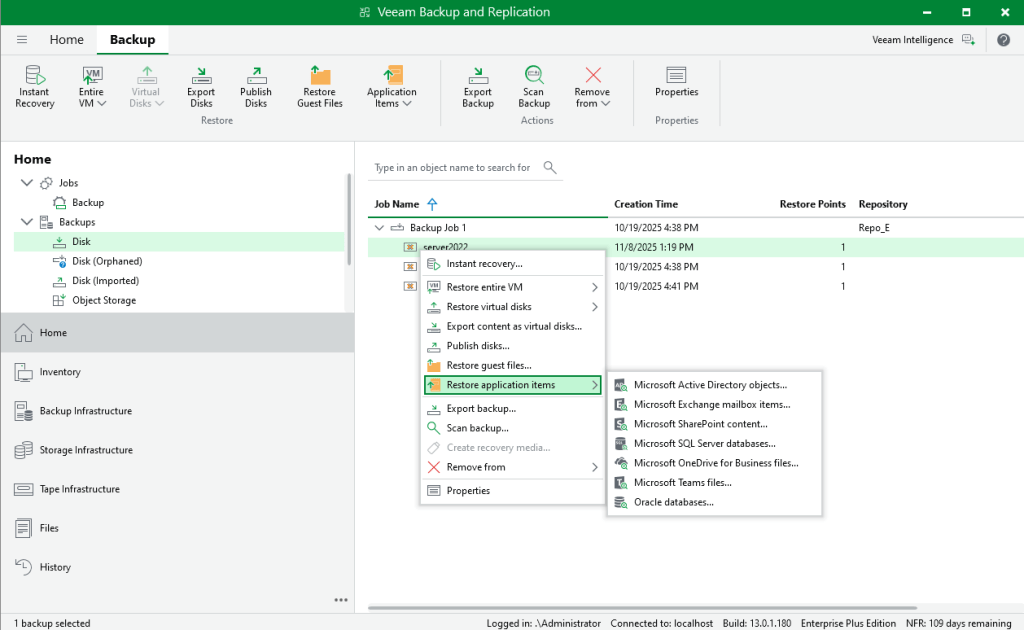
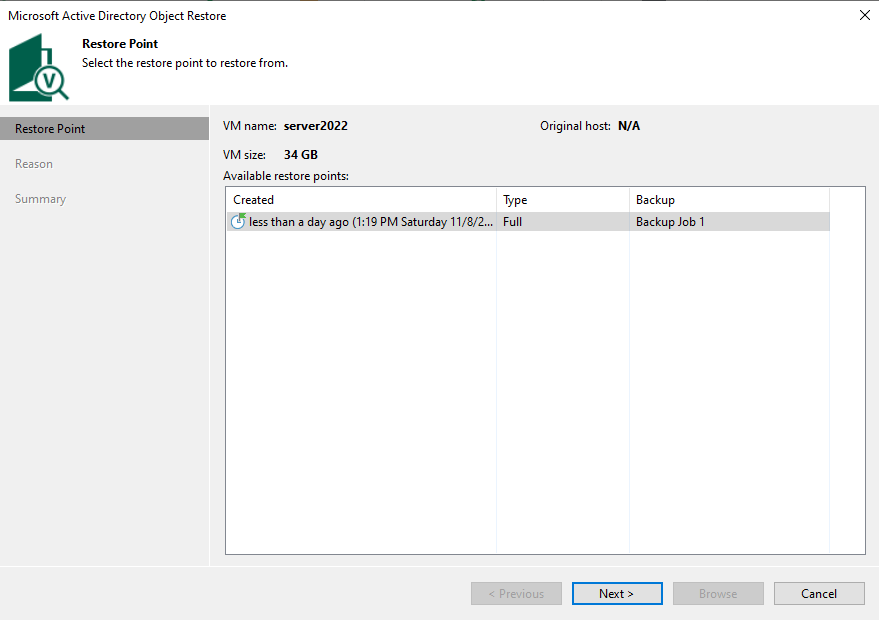
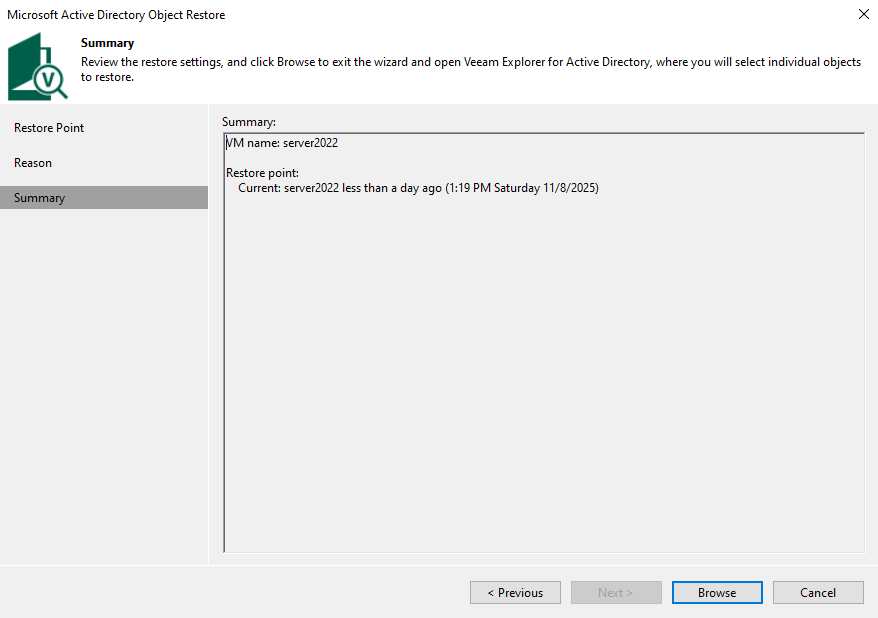
I went for Microsoft Active Directory objects, selected the new restore point and was able to browse my Active Directory.
File system activity analysis (IOC detection)
As I also enabled guest file indexing, the file system activity analysis detected a potential malicious tool or Indicator of compromise (IOC) which I had placed there. That’s a nice addition for VMs running on Promox VE.


Conlusion
The first release of the Proxmox integration already supported many features. But probably a lot customers were missing guest processing, which has now been delivered. So it’s great to see this integration grow further and further.
 Michael Paul | @micoolpaul
Leave a comment