Posted On:

Last Updated:

Quick Tip: How to fix camera flickering in Microsoft Teams


UPDATE MARCH 2024: THESE SETTINGS ONLY WORK FOR ‘CLASSIC TEAMS’ AS NO FEATURE EQUIVALENT CURRENTLY EXISTS FOR ‘NEW TEAMS’

For the last 18+ months, there’s been a huge increase in the number of video calls (apparently something to do with a pandemic?). For some people this has caused them a huge amount of frustration if they’re near a source of LED lighting, as it appears on camera as a flicker, this can become even more prominent when using background effects or filters.

Thankfully Microsoft Teams has a built in solution! From the main Microsoft Teams client window, click on the three dots and then choose settings.
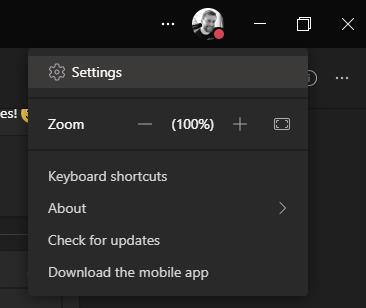
From settings, you’ll want to select “Devices” from the left hand side, then scroll down to the “Camera” section.
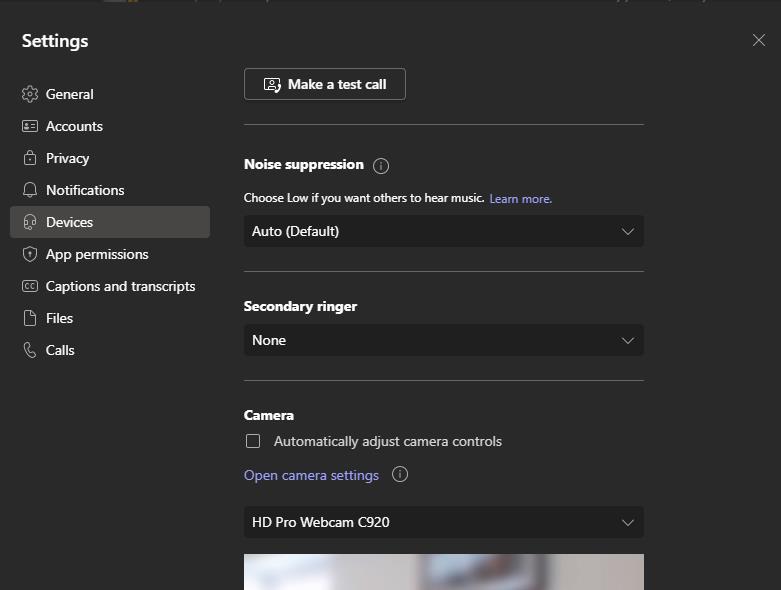
Under the camera section you’ll have a clickable link labelled “Open camera settings”, you’ll then see a screen such as below:

To resolve this problem, all you need to do is change your PowerLine Frequency setting, most commonly in the UK this needs to be changed from 60 Hz to 50 Hz, but if you’re using 50 Hz and having this problem, you can change this to 60 Hz.

Once you click okay, your video feed should be looking clean!

Hope this helps!

11 responses to “Quick Tip: How to fix camera flickering in Microsoft Teams”

  1. Does anyone else not have this ‘Open camera settings’ feature to be able to access the frequency settings- im on a mac?

    Like

    1. Hi, I don’t have a mac to test but last time I used one those options didn’t exist, sorry!

      Like

    2. I’m on a mac and I don’t see it. I have terrible flickering on Teams video when plugged into an external LG Ultrafine monitor. Have tried everything. At a total loss. Sounds like this would fix it—if only I could access that setting. Anyone else have any ideas?

      Like

      1. Your camera flickers or the video in general flickers? Is this using the same camera as when you’re not using the monitor?

        Like

      2. Beatriz Shorrock Avatar
        Beatriz Shorrock

        I have the same issue Amanda – weirdly no flicker with Google meet or zoom , only teams on desktop 🤷‍♀️ absolute mystery – I’ve tried new camera , new connector , disabled auto adjust setting and reinstalled teams . Nothing seems to work ?

        Like

    3. Yes. Had the same issue. You can download the app “Webcam Settings” to tweak options.

      Like

  2. I had been having the same issue using Teams on Mac. Just fixed it thanks to @micoolpaul.

    Yes, Mac does not provide any out of box panel to change camera settings. However, you can download a free app, “Webcam Settings” to tweak the frequency to 50Hz or 60Hz, whatever works for you. The app also provides a load of other helpful options.

    Check it out and thanks again Paul.

    Like

  3. It used to work on standard Teams app but is not more available in the “New” Teams app.

    In the standard app, to get access to camera Properties you had to disable first the checkbox “Automatically adjust camera settings”.

    Too bad for Microsoft “forgetting” this feature on the New app

    Like

    1. Correct, hopefully they won’t take too long to bring this feature back, but for now if you need it and your organisation isn’t enforcing new Teams, you can use that as a way back. Otherwise you’d need to pull your camera into something like OBS and handle the anti-flicker in advance of presenting your webcam feed to Teams, then you just share the OBS output to Teams.

      Like

  4. Thanks for this post, I’d never found this option without it

    At least in New Teams 24257.205… the setting is back

    Like

  5. just found this post. changed the setting from 60Hz to 50Hz and the flickering has stopped. it was beginning to drive me mad so thank you.

    Like

Leave a reply to Helen Bagge Cancel reply

This site uses Akismet to reduce spam. Learn how your comment data is processed.