

Hey all,
Back from a bit of a blogging hiatus to remind people of two things:
- That Entra ID got new capabilities in v13 & v13.1
- That you have to reauthorise the application to enable them.
It’s a really simple process, so I thought I’d just quickly show everyone how it’s done!
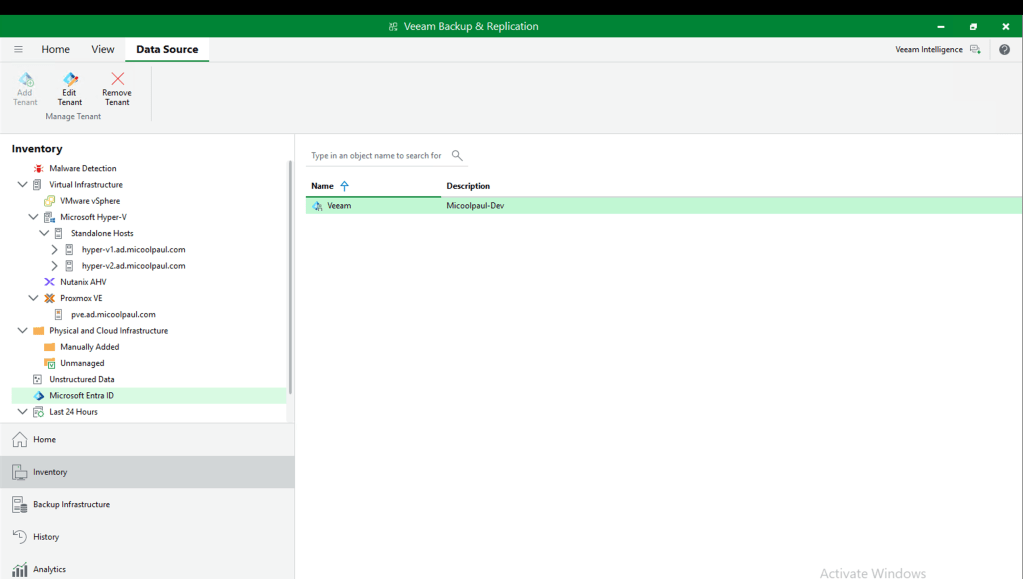
Step 1: Within the Veeam Backup & Replication Console, go to Inventory, and then ‘Microsoft Entra ID’. Select your organisation, then choose Edit Tenant.
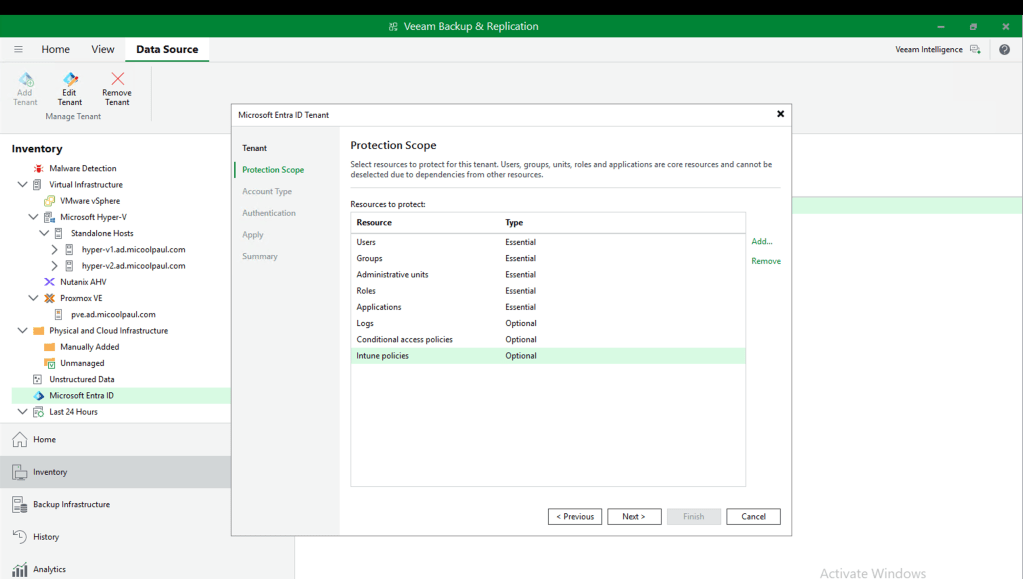
Step 2: Proceed to the ‘Protection Scope’ section, you’ll see here every ‘Essential’ type of object protected (as the type name suggests, these cannot be removed). You may also see some ‘Optional’ type of objects protected here. This depends on which VBR version you onboarded your tenant, and whether you’ve remembered/known to do this in the past.
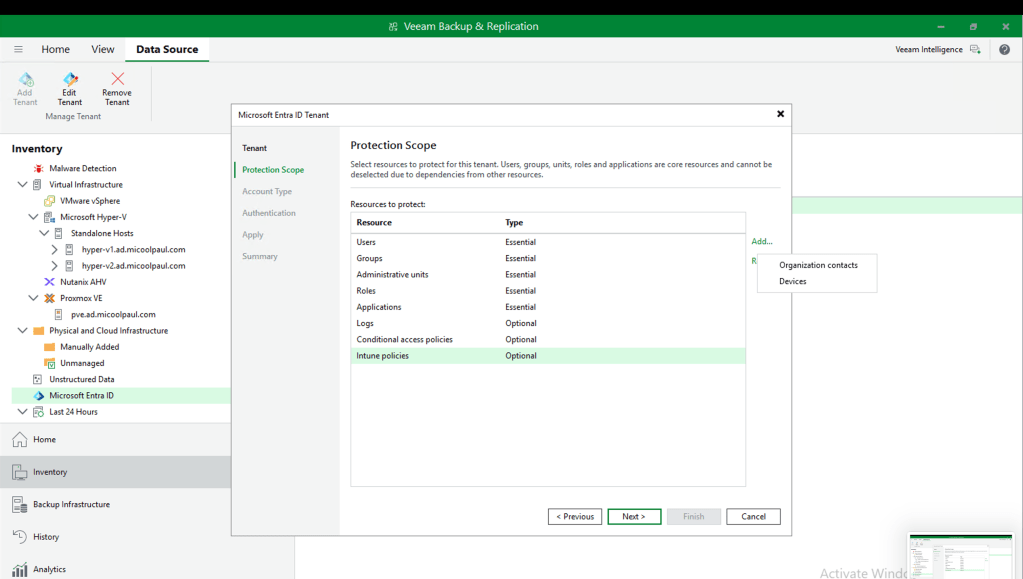
Step 3: Select ‘Add’ on the right hand side, and choose the missing optional types you want to protect. Within VBR v13.1, Veeam added support for both ‘Organization Contacts’ and ‘Devices’. in VBR v13, Veeam added support for Intune Policies, and in a v12 release, Conditional Access Policies were added. Add whichever ones you need. If you want to understand how this translates in to the permissions the App Registration will contain at the end of this, please review Veeam’s Helpcenter documentation here.
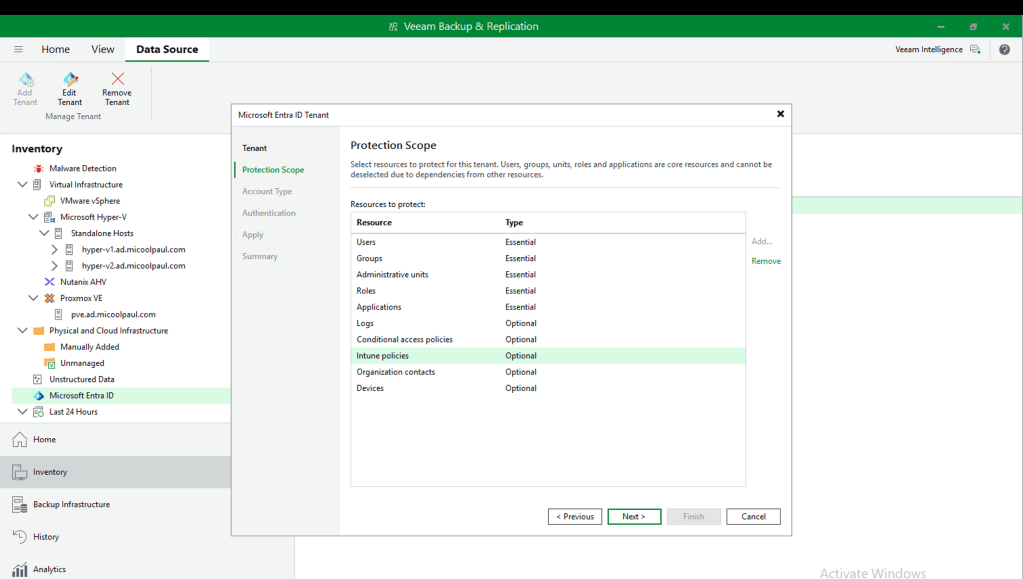
Here you can see every additional object type I’ve protected.
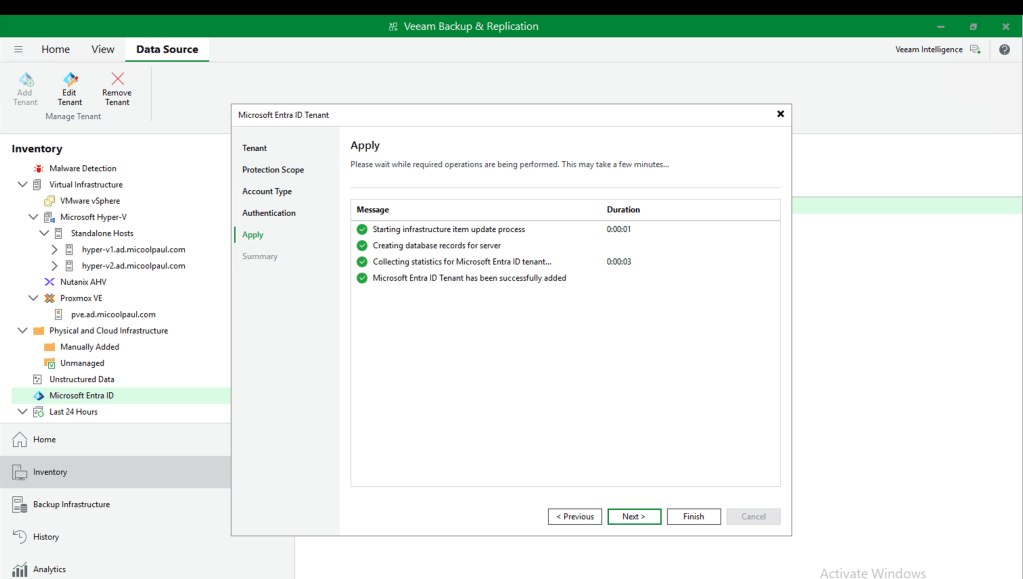
Step 4: Finalise the new app registration by completing the device code flow authentication.
That’s it!
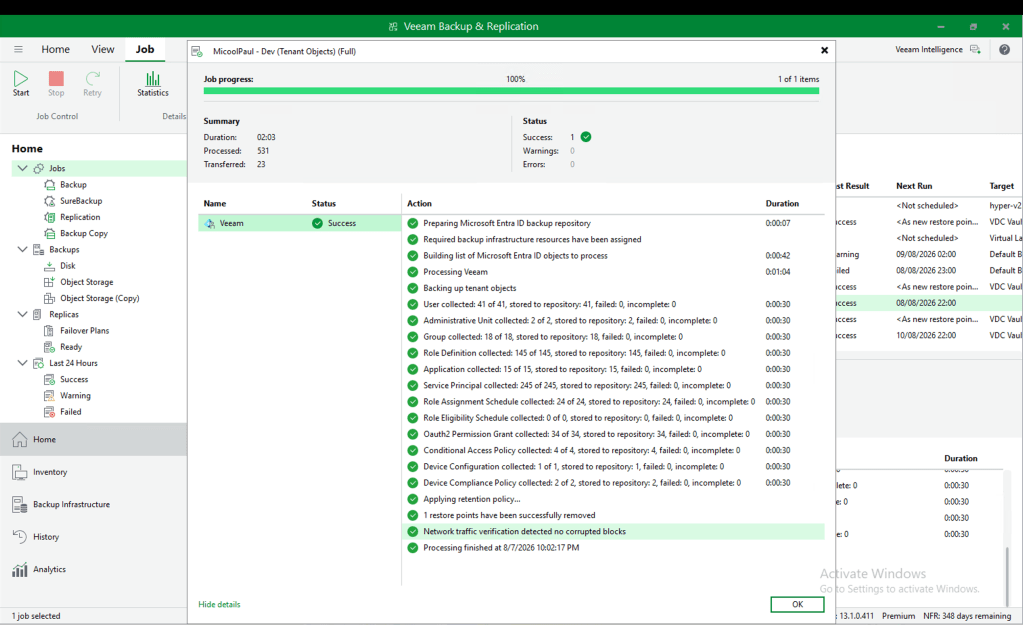
When you check your job statistics, you’ll see subsequent job runs have the extra objects. For example, here’s my job run prior to making the changes:
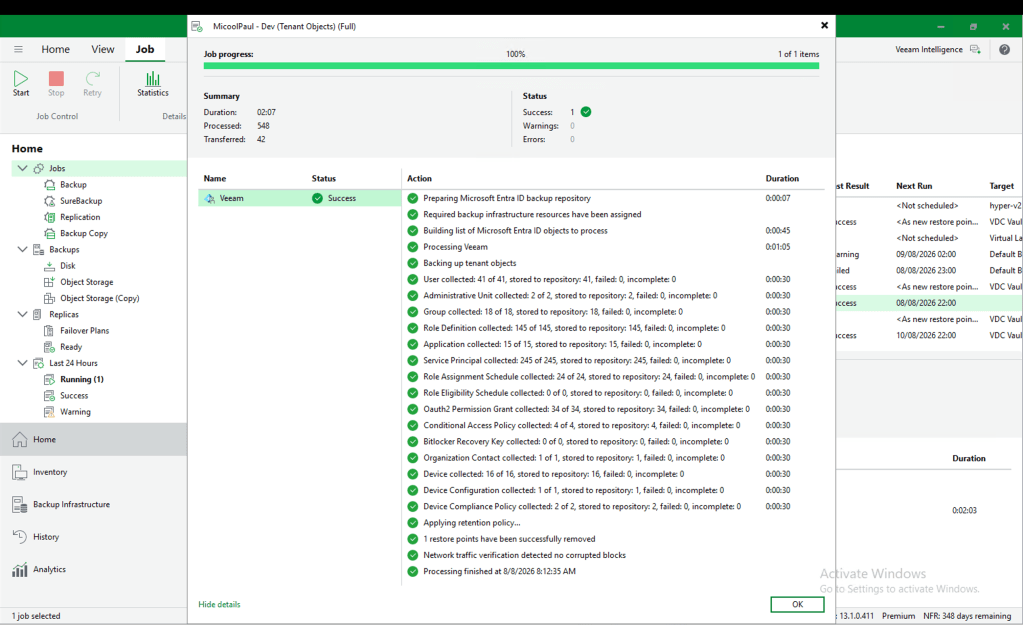
And then here’s my newly protected object types (Just above the Device Configuration & Policies at the bottom):
And that’s it. Takes less than 5 minutes to provide better protection for your tenant.
Diving into these new object types a bit more. Organization Contacts are the Contacts you can create within the M365 & Exchange Admin Centers. It’s a way of you storing external contacts within your centralised address books for easy reference. Due to Microsoft API limitations, it’s possible to get this information, but not restore (programatically via the Graph API). Veeam allows you to export this information so you could manually import the JSON via a Cmdlet for example, and also allows you to compare the backup objects to your live Entra ID tenant, so you can see any changes to these objects.
Finally for Devices, this is again a read-only object, but when you think about it, this one makes sense. Most of the device properties are physical aspects of the device, such as the OS and version it runs, overwriting a property wouldn’t change that. Furthermore, if trust was broken between device & Entra ID, you can’t just restore the Entra ID element of trust, both endpoints need to trust each other via a mutually trusted user. So, you may be wondering why bother protecting devices. Key reasons would be tracking device ownership history when Entra ID has been cleaned up and old users/devices have been life-cycled, since Veeam tracks these relationships, but also it’s things like Bitlocker keys. If you delete the object permanently from Entra ID, your BitLocker recovery key may be lost. Alternatively, if you cloned a hard drive but then the BitLocker key was rotated, you may no longer be able to decrypt that cloned drive. Veeam helps in both scenarios here by providing the BitLocker key, based on the point in time you need it for.


Leave a Reply